How to Optimize Your Network Settings for GTA 6 Online Multiplayer
TL;DR
- Wired Over Wireless: Ditch the Wi-Fi. Always use an Ethernet cable for the lowest latency and maximum stability.
- Achieve Open NAT: Aim for an Open NAT Type (Type 1 or 2) by enabling UPnP or manually setting up Port Forwarding for GTA 6.
- Change DNS Servers: Swap your default ISP DNS for Google DNS (8.8.8.8) or Cloudflare (1.1.1.1) to drastically reduce connection lookup times.
- Enable QoS (Quality of Service): Configure your router to prioritize gaming traffic over background downloads and streaming.
- Router Upgrades: If your ISP-provided router is struggling with bufferbloat, investing in a solid gaming router can save your heists.
After more than a decade of waiting, the streets of Leonida are finally open for business. Grand Theft Auto 6 is not just a generational leap in graphics and storytelling; its online multiplayer component is shaping up to be the most ambitious, chaotic, and demanding shared-world experience Rockstar Games has ever built.
But there is nothing more frustrating than lining up the perfect sniper shot during a multi-million dollar heist, only to have your target teleport three feet to the left because of a lag spike. Or worse, getting unceremoniously dropped into a solo lobby because your connection timed out during a crucial getaway.
In this comprehensive guide, we are going to dive deep into exactly how you can optimize your network settings for GTA 6 Online multiplayer. We will cover everything from basic physical connections to advanced router configurations like Port Forwarding, DNS optimization, and QoS rules. Whether you are playing on PS5, Xbox Series X, or holding out for the PC release, these networking tweaks will ensure your connection is as flawless as your getaway driving.
Why GTA 6 Online Demands Network Optimization
Modern multiplayer games handle data in complex ways, and Rockstar's proprietary RAGE engine combined with their online infrastructure heavily relies on a hybrid peer-to-peer (P2P) and dedicated server model. This means that while player matchmaking, cloud saves, and economy transactions are handled by Rockstar's central servers, much of the moment-to-moment gameplay—like the position of other players, NPCs, and vehicles—requires a direct, low-latency connection between you and the other players in your lobby.
If your network is bottlenecked by poor Wi-Fi, strict NAT types, or ISP throttling, you will experience:
- Rubberbanding: Players and vehicles skipping around the map.
- Desync: Getting shot behind cover because the server thinks you are still exposed.
- Lobby Splits: Getting disconnected from your friends and dropped into an empty session.
- Infinite Loading Screens: Taking forever to transition into buildings or out of missions.
To prevent this, you need a stable, unrestrictive, and prioritized connection. Let's fix your network.
Step 1: Ditch the Wi-Fi (Embrace Ethernet)
Before we touch any software settings, we need to address the hardware. The single biggest improvement you can make to your gaming experience is stopping the use of Wi-Fi.
Wi-Fi is convenient, but it operates on radio waves that are susceptible to interference from walls, microwaves, Bluetooth devices, and even your neighbors' networks. This interference causes packet loss—data that gets lost in the air and has to be re-sent, resulting in latency spikes (lag).
The Solution: Use a Cat6 Ethernet Cable
Connecting your console or PC directly to your router via an Ethernet cable provides a full-duplex, interference-free connection.
- Ensure you are using at least a Cat5e or Cat6 cable. (If your cable is old and fraying, replace it).
- If your router is in another room, consider a long, flat Ethernet cable that can run under carpets, or invest in a Powerline Adapter. Powerline adapters use your home’s existing electrical wiring to transmit data, which is generally much more stable than Wi-Fi, though your mileage may vary depending on the age of your home's wiring.
For more insights on upgrading your physical network setup, check out our guide on how to build the ultimate gaming setup.
Step 2: Fix Your NAT Type (Port Forwarding)
Your Network Address Translation (NAT) type dictates how easily your console or PC can connect to other players. In a P2P-heavy game like GTA 6 Online, having a restrictive NAT type is a death sentence for matchmaking.
There are three NAT types:
- Open (Type 1): You can connect to anyone. Ideal for gaming.
- Moderate (Type 2): You can connect to most people, but might struggle to host lobbies. (Perfectly fine for most users).
- Strict (Type 3): You can only connect to players with an Open NAT. You will experience constant lobby drops, chat issues, and matchmaking failures.
How to Get an Open NAT Type
To open your NAT, you need to tell your router to allow traffic on the specific ports that GTA 6 and your gaming platform use.
Method A: Enable UPnP (Easiest) Universal Plug and Play (UPnP) allows applications to automatically open the ports they need.
- Log into your router's admin panel (usually by typing
192.168.1.1or10.0.0.1into your web browser). - Locate the Advanced or Network Settings tab.
- Find UPnP and toggle it to Enabled.
- Restart your router and console.
Method B: Manual Port Forwarding (Most Reliable) If UPnP doesn't work, you must forward the ports manually. First, assign a Static IP address to your console/PC in your router's settings. Then, navigate to the Port Forwarding section and open the following ports:
PlayStation 5 Ports:
- TCP: 80, 443, 3478, 3479, 3480
- UDP: 3478, 3479, 49152~65535
Xbox Series X|S Ports:
- TCP: 3074
- UDP: 88, 500, 3074, 3544, 4500
GTA 6 Specific Ports (Based on Rockstar Infrastructure):
- TCP: 6672, 61455, 61457, 61456, 61458
- UDP: 6672, 61455, 61457, 61456, 61458
Save your changes, restart your network hardware, and check your network settings on your console to confirm you now have an Open or Moderate NAT.
Step 3: Optimize Your DNS Servers
The Domain Name System (DNS) is essentially the phonebook of the internet. It translates URLs into IP addresses. By default, you use your Internet Service Provider's (ISP) DNS, which is often slow and sluggish.
Changing your DNS to a faster, public server can reduce the time it takes your system to locate and connect to Rockstar's servers, which can significantly speed up login times and reduce initial matchmaking latency.
The Best DNS Servers for Gaming:
- Cloudflare:
- Primary:
1.1.1.1 - Secondary:
1.0.0.1
- Primary:
- Google:
- Primary:
8.8.8.8 - Secondary:
8.8.4.4
- Primary:
How to Change DNS on PS5:
- Go to Settings > Network > Settings > Set Up Internet Connection.
- Hover over your active connection, press the Options button, and select Advanced Settings.
- Change DNS Settings to Manual.
- Enter the Cloudflare or Google Primary and Secondary addresses.
- Save and test the connection.
How to Change DNS on Xbox Series X|S:
- Go to Settings > General > Network settings > Advanced settings.
- Select DNS settings > Manual.
- Enter the Primary and Secondary DNS addresses.
- Save and test.
If you also play heavily on PC, you might want to look into optimizing Windows 11 for gaming to ensure your operating system isn't bottlenecking your network.
Step 4: Enable QoS (Quality of Service)
Bufferbloat is a phenomenon where your router queues up too much data, causing massive latency spikes. If you share a household with people streaming Netflix in 4K, downloading massive files, or taking Zoom calls, your GTA 6 data packets get stuck in traffic behind all that other data.
Quality of Service (QoS) is a router feature that fixes this. It acts as a traffic cop, prioritizing gaming packets so they skip the line, regardless of what else is happening on the network.
How to Enable QoS:
- Log into your router's admin panel.
- Look for the QoS or Traffic Prioritization tab (often under Advanced Settings).
- Enable QoS.
- Many modern routers let you simply select a device (like your PS5 or Xbox) and set its priority to High or Highest.
- Older routers may ask you to input your maximum Upload and Download speeds (run a speed test to find these) and set rules based on MAC addresses. Make sure to input about 85-90% of your maximum speed to allow the router's algorithm room to breathe and manage the queue effectively.
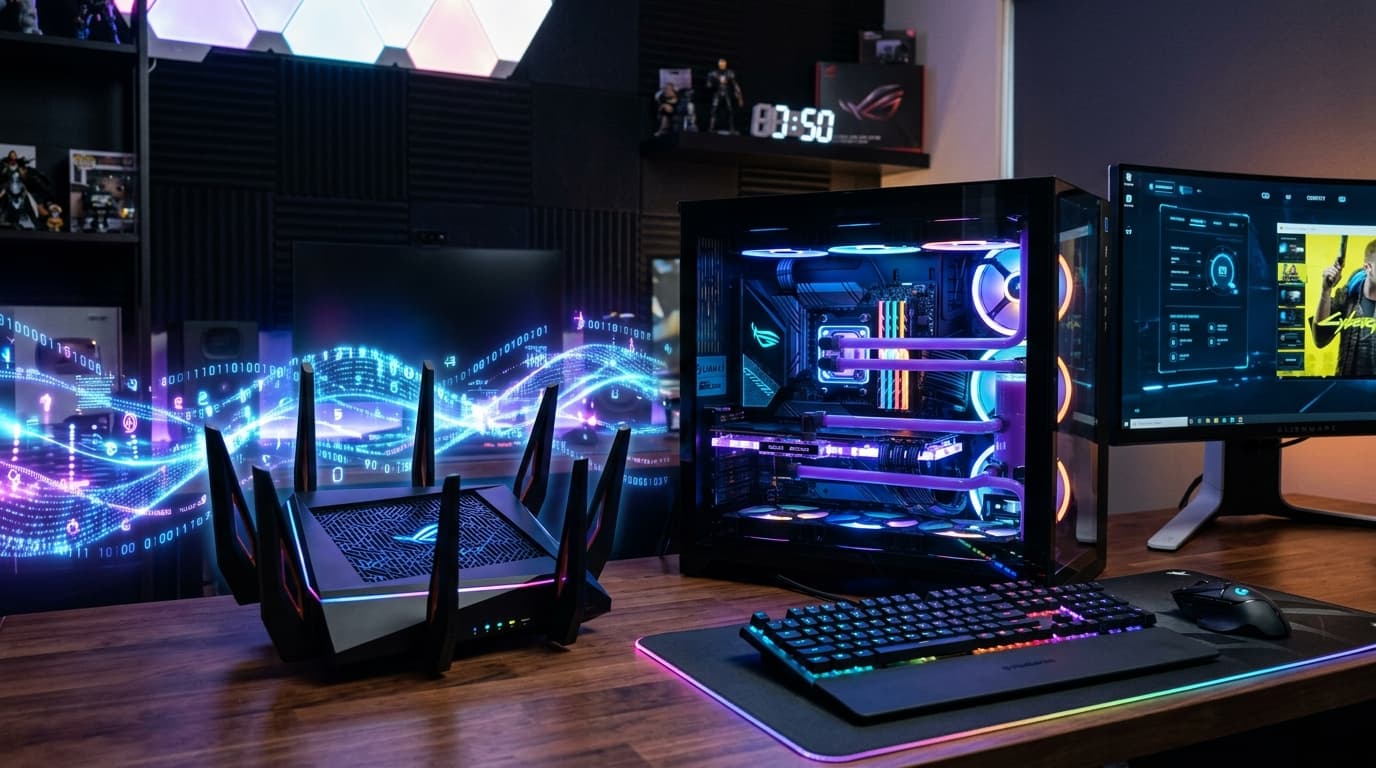
Recommended Hardware: Upgrade Your Gaming Router
If you are using the default combination modem/router that your ISP gave you, you are doing yourself a massive disservice. ISP routers are notoriously cheap, lack basic features like proper QoS, and overheat easily under heavy load.
For the ultimate GTA 6 Online experience, upgrading to a dedicated gaming router with Wi-Fi 6E (or Wi-Fi 7) and built-in gaming prioritization is a massive quality-of-life improvement.
- ✓ Tri-band Wi-Fi 6
- ✓ built-in game acceleration
- ✓ 2.5G ports
- ✓ exceptional QoS for reducing bufferbloat.
- ✗ Premium price tag
- ✗ large physical footprint.
The ROG Rapture series features a dedicated "Gaming Port" that automatically prioritizes any device plugged into it, entirely bypassing the need to manually configure QoS rules. It is an absolute beast for handling large, multi-device households without letting your ping spike. If you're looking for more options across different budgets, read our full breakdown of the best gaming routers in 2026.
Step 5: Check Your ISP and Internet Speed
At the end of the day, all the router tweaks in the world cannot save a fundamentally broken connection from your ISP.
While GTA 6 Online does not require gigabit speeds to play smoothly—multiplayer gaming actually uses very little bandwidth (often less than 1-2 Mbps)—it requires low latency (Ping) and zero packet loss.
- Run a Speed Test: Go to Speedtest.net or use waveform.com/tools/bufferbloat to test your connection.
- Check Ping (Latency): You want your ping to be under 50ms to local servers. Anything above 100ms will result in noticeable lag in GTA 6.
- Check Packet Loss: It should be 0%. If you are consistently seeing 1% to 5% packet loss on a wired connection, there is likely physical damage to the coaxial/fiber lines outside your home, or a fault at your ISP's node. You will need to call your ISP and have a technician inspect the line.
The Ultimate Heist Requires the Ultimate Connection
Surviving the chaotic, player-filled streets of Vice City in GTA 6 Online is hard enough without fighting your own network. By taking the time to hardwire your system, opening your NAT, optimizing your DNS, and utilizing QoS, you are ensuring that your gaming experience is as smooth and responsive as possible.
No more disconnects during the finale of a heist. No more teleporting enemies in freemode shootouts. Just pure, uninterrupted Rockstar chaos.
Once your network is dialed in, you'll want to make sure your display is just as optimized. Don't miss our guide on how to calibrate your TV for HDR gaming to make the neon lights of Leonida truly pop.
See you in the streets. If you found this guide helpful, share it with your heist crew so they aren't the ones dropping the connection when the cops show up!
David tests AI tools, gadgets, and developer platforms hands-on before writing about them. His work focuses on making complex tech approachable — without the hype. He has covered 100+ products across AI, gadgets, and software for TechPixelly.