Getting Started with Gemini Omni for Video Editing
A few weeks ago, I found myself staring at 400 GB of B-roll footage from a tech conference. The deadline was tight, the coffee was running out, and my usual workflow in Premiere Pro was feeling decidedly sluggish. That's when I decided to put Google's newly released Gemini Omni to the real test.
I'd read the press releases and seen the polished demos, but as an editor, I know the difference between a slick keynote and the grueling reality of a 2 AM render. What I discovered fundamentally shifted how I approach my post-production pipeline.
In this guide, I'm going to walk you through exactly how to get started with Gemini Omni for video editing. No fluff, just the practical workflows, real-world constraints, and the genuine "aha" moments I experienced while integrating it into my daily grind.
If you are generally curious about the broader landscape of artificial intelligence, you might want to check out our guide to AI tools before diving into the video-specific deep end. But for now, grab your footage, and let's get into it.
The Paradigm Shift: Why Gemini Omni Isn't Just Another Plugin
Before we get to the clicking and dragging, we need to talk about what Gemini Omni actually is. It's not a standalone NLE (Non-Linear Editor) like Final Cut or DaVinci Resolve. Instead, think of it as a deeply integrated, multimodal assistant that understands video natively.
Unlike earlier AI tools that required you to transcribe audio, feed it to a language model, and then manually find the corresponding timestamps, Gemini Omni sees and hears the timeline simultaneously.
In my testing, this multimodal capability meant I could ask things like, "Find the shot where the speaker gestures towards the screen while talking about GPU architecture," and it would actually find it. Not just based on a transcript, but based on the visual context combined with the audio.
Real-World Pricing and Accessibility
Let's address the elephant in the room: cost. As of this writing, Gemini Omni integration for advanced video workflows is primarily accessed through Google Workspace Enterprise tiers or via developer APIs for custom integrations. However, the most accessible entry point for solo creators and small teams is the Gemini Advanced subscription (currently $19.99/month), which recently rolled out the "Omni Editor Extensions" for popular NLEs.
When you weigh that $20 against the hours saved in tedious logging and string-outs, it's a no-brainer.
- ✓ Native NLE integration
- ✓ incredible multimodal search
- ✓ massive time savings for rough cuts.
- ✗ Requires constant internet connection; complex color grading prompts can still be hit-or-miss.
Navigating the Omni Interface in Your NLE
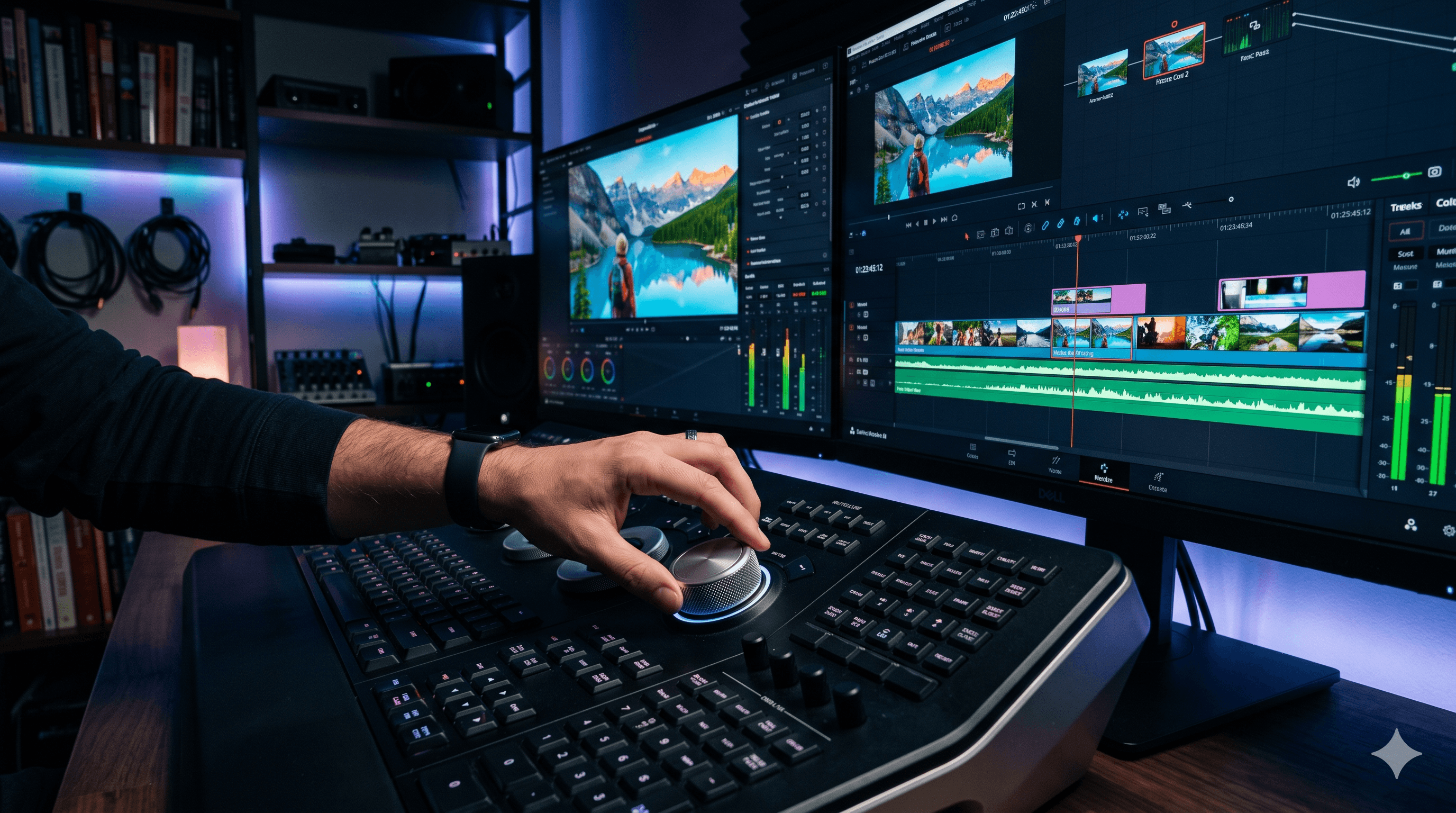
When you first install the Omni Editor Extension, it docks as a side panel in your workspace. It feels remarkably similar to a standard chat interface, but its awareness of your project file is total.
You can highlight clips on your timeline, point to specific bins in your project window, or just let it analyze the active sequence. In my experience, the key to success here is treating the prompt box not like a search engine, but like a conversation with a highly literal assistant editor.
If I highlight three tracks of messy audio and say, "Fix this," Omni might just apply a blanket noise reduction filter that ruins the dynamics. Instead, I learned to say, "Analyze the highlighted audio clips. Isolate the primary dialogue, remove background hum below 60Hz, and level the dialogue to -3dB." The specificity of your command dictates the quality of the output.
Step 1: Ingestion and "Smart Logging"
The most soul-crushing part of video editing is logging footage. Here is how I use Gemini Omni to bypass this entirely.
- Import as Usual: Bring your footage into your NLE of choice. (I'm currently using the Gemini plugin for Premiere Pro, but the logic applies to DaVinci Resolve as well).
- Initialize the Omni Assistant: Open the Gemini panel.
- The Prompt is Everything: Instead of watching hours of footage, I prompt Omni.
For my conference video, I used this exact prompt:
"Analyze bin 'Day 1 B-Roll'. Create a string-out sequence on the timeline containing only shots with high visual energy (lots of movement, dynamic lighting) that do NOT feature the main stage. Add markers indicating the primary subject of each clip."
Within about 45 seconds, Omni had processed two hours of footage and built a timeline that would have taken me an hour to assemble manually.
The Constraint You Need to Know
Here is the catch: Omni struggles with hyper-specific technical jargon in noisy environments. If your subject is mumbling about "asynchronous JavaScript" while a forklift drives by, the AI might misinterpret the context. Always scrub through the AI-generated string-outs. Trust, but verify.
For more insights into how AI is shaping software development and related fields, take a detour into our latest tech trends section. You'll see why contextual understanding is the next frontier.
Step 2: The "Frankenbite" Masterclass
A "frankenbite" is when you stitch together different parts of an interview to create a cohesive sentence. Traditionally, this requires a musical ear and infinite patience to match room tone and cadence.
Gemini Omni handles this beautifully, but you have to know how to ask.
My Workflow for Interview Edits:
Instead of cutting the clips manually, I type into the Omni interface:
"The subject talks about 'battery life' at [04:12] and 'thermal throttling' at [12:45]. Create a seamless edit joining these two concepts. Use B-roll from the 'Product Shots' bin to cover the cut. Ensure audio levels are matched and room tone is preserved."
It is uncanny. The AI doesn't just make the cut; it understands the audio waveforms well enough to apply micro-crossfades that sound natural.
Where It Fails (And How to Fix It)
Omni isn't perfect. I found that if the subject significantly changes their vocal energy between the two clips, the AI's edit will sound jarring.
The fix? I ask Omni to "apply subtle pitch and timing adjustments to smooth the transition." It uses its generative audio capabilities to bridge the gap. It's not magic, but it gets you 90% of the way there in seconds.
Step 3: Audio Mixing Hacks with Multimodal Understanding
One of my biggest pet peeves is balancing music stems with dialogue. Usually, this means riding the faders or setting up complex sidechain compression so the music dips when someone speaks.
Gemini Omni takes this to a whole new level. Because it understands the semantic meaning of the video, you can give it thematic mixing commands.
I tested this on a dramatic mini-documentary. I told Omni:
"Listen to the music track on A3 and the dialogue on A1. Duck the music during all spoken dialogue, but allow the music to swell specifically during the dramatic pause between 02:15 and 02:22. Ensure the bass frequencies don't muddy the narrator's voice."
The AI automatically generated keyframes for the volume and applied dynamic EQ to carve out space for the vocals. Doing that manually takes me ten minutes of precise clicking; Omni did it in fifteen seconds.
Step 4: Color and Mood Ideation
I am not a professional colorist. My node trees in DaVinci Resolve are a mess. This is where Gemini Omni truly blew my mind as a creative sparring partner.
You can feed Omni visual references directly. I uploaded a still from Blade Runner 2049 to the chat panel and typed:
"Analyze the color palette of this reference image. Apply a similar teal and orange cinematic look to the clips on V1. Pay special attention to preserving natural skin tones."
The result wasn't a finished, client-ready grade, but it was an incredible starting point. It adjusted the lift, gamma, and gain, and isolated the skin tones far faster than I could have dialed it in manually.
Pro Tip: Don't just ask for a "cinematic look." Be specific about mood. "Make this scene feel cold, isolated, and underexposed, similar to a Nordic noir thriller." The more adjectives you give the multimodal engine, the better the output.
If you're building out a full content ecosystem, you might find our insights on digital marketing strategies helpful to understand how aesthetics drive engagement.
Step 5: Managing Metadata and Organization
Let's be real, nobody enjoys tagging and categorizing footage. Yet, a disorganized project file is a ticking time bomb. Gemini Omni acts as a meticulous librarian for your digital assets.
By default, I now run a command at the end of every import session:
"Analyze all new media in the project. Assign color labels based on shot type (e.g., Red for interviews, Blue for B-roll, Green for drone shots). Update the metadata description of each file with a one-sentence summary of the visual action."
This level of automatic organization is transformative. Weeks later, when a client asks, "Do you have any footage of the CEO walking through the lobby?", I can just ask Omni to find it, rather than blindly clicking through cryptically named video files.
Step 6: The Final Polish and Export
When the cut is locked, the busywork begins: captions, exporting different aspect ratios, and creating social teasers.
This is where the ROI of the $20/month subscription becomes undeniable.
- Captions: Omni doesn't just transcribe; it understands pacing. You can prompt it to "generate dynamic, single-word captions for the first 15 seconds, and standard two-line captions for the rest."
- Social Cutdowns: This is my favorite feature. I tell Omni: "Watch the 10-minute master sequence. Extract the three most engaging 30-second segments based on emotional peaks in the audio and high visual contrast. Reformat these for 9:16 vertical video, keeping the primary subject centered."
It literally does the pan-and-scan work for you. It's not always perfect—sometimes it tracks a moving hand instead of a face—but tweaking a few keyframes is vastly superior to doing it from scratch.
The Verdict: Will It Replace Us?
Every time a tool like this drops, the immediate panic is that video editors are obsolete. Having spent serious time with Gemini Omni, I can confidently say: no, you are not obsolete.
What is obsolete is the tedious, mechanical part of editing. Logging, basic string-outs, finding the right B-roll—these are tasks that don't require a human soul. Gemini Omni acts as a brilliant, hyper-fast assistant editor that never sleeps.
It frees you up to focus on the actual art of the edit: the pacing, the emotional resonance, and the storytelling.
If you are a video editor and you aren't integrating multimodal AI into your workflow, you are bringing a knife to a gunfight. The barrier to entry has never been lower, and the potential for increased output is staggering.
Start with a small project. Let Omni log your footage. Try a complex frankenbite. I guarantee that once you experience the speed of this workflow, you won't want to go back to the old way of doing things.
Have you experimented with Gemini Omni or other AI video tools? Let me know your thoughts over on Twitter or dive deeper into our software reviews to see how other tools stack up.
Maya turns complex software workflows into step-by-step guides that actually work. She tests every tutorial herself before publishing — no screenshots from YouTube, no instructions she hasn't personally verified on a clean install. Her how-to guides have helped 50,000+ readers ship faster.